

 SEARCH
 diglloydTools™

$220 SAVE $130 = 37.0% Western Digital 16.0TB Western Digital Ultrastar DC HC550 3.5-in… in Storage: Hard Drives
|
|

|
|

|

|

|

|

|

|
How to Unhide your Library Folder on OS X

Mac OS X 10.7 and 10.8 hides the Library folder which is found in your home directory.
Update: OS X 10.9 Mavericks provides a Finder checkbox to control the hide/show behavior for the Library folder.
Apple’s decision to do this is probably based on the fact that the Library folder contains a lot of files you don’t need to know about, including caches and the like.
Or do you? What if you want to clean things up? Or get at your own user data, which some programs place in the Library folder?
Some programs put important user data into the Library folder, making it invisible to users. Invisible means risk, since being unaware of it might mean proper care is not taken to backup the data, or to transfer it to a new system.
This makes Apple’s choice a dubious one, not to mention a repeated hassle for some users. I have more than a few times needed access to items within the Library folder (color profiles and Mail downloads are just two of many examples).
OS X: making the library folder visible / unhiding it
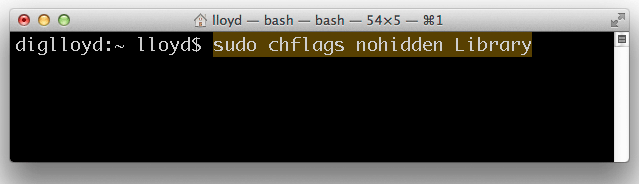
These commands require Terminal.
To unhide the Library folder in your home directory:
chflags nohidden ~/Library
To hide the Library folder in your home directory (or any folder):
chflags hidden ~/Library
Seagate 22TB IronWolf Pro 7200 rpm SATA III 3.5" Internal NAS HDD (CMR)
SAVE $100
