

Other World Computing
OWC
Our Trusted Vendor

How-to (miscellaneous)

Last updated January 8, 2010

This page has various “how to” items on it.

If there is something you’d like to see added, contact us.

How to disallow saving username and passwords

If you’re using a web browser on a public computer, be sure that auto-fill is off for usernames and passwords. A skanky web site cafe might leave this option on, or a user might even deliberately turn it on, then come back later to see what s/he can “harvest”. A reputable sevice will have configured the computer to reset after ever user, but don’t count on it.

For Apple Safari it’s in the preferences; other browsers have similar settings.


Use great caution remembering usernames and password

How to reset Apple Safari saved information


Resetting Apple Safari saved information

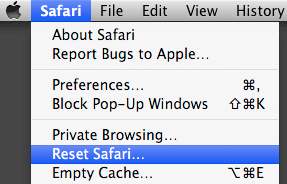
For Apple’s Safari, choose the Safari => Reset Safari… menu command.

Notice there is also a Empty Cache… menu item; this is useful for eliminate stale web pages and images if the current version of a web page is not showing up.

The Reset Safari dialog is shown below. Use caution here; you can’t really hurt anything, but it might be annoying to lose all your saved usernames and passwords and cookies, which are by and large a great convenience.
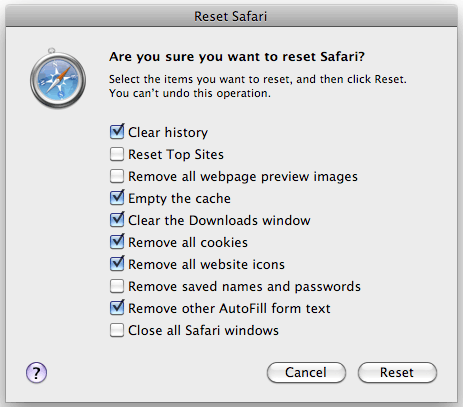
After using Safari on a public computer, I recommend checking all the boxes then clicking Reset, to avoid someone else being able to see where you’ve been, or even (if the computer provider is careless) being able to auto log-on as you to a web site.

Resetting Apple Safari saved information

How to erase a web site password

A password might be remembered differently, depending on how the web site works. For most sites, use the Remove saved names and passwords checkbox as shown in How to Reset Safari.

Some web sites use passwords in a way that allows the password to be stored in your Mac’s keychain, a useful convenience. To do so, select (check) the Remember this password in my keychain when prompted for the password as shown below.


One possible login you might encounter

Clearing the password

volumes
Keychain Access, in /Applications/Utilities

While it’s easy enough to check a box, clearing the password is another matter. You might want to clear the password when your login information has changed for the web site, for example.

To clear the password, open Keychain Access, located in the Utilities folder on your startup drive (inside the Applications folder).

1. Click on Passwords at left.

2. Locate the web site name in the Name column at right

3. Select the username you wish to remove and press the Delete key.

As shown below, the user diglloyd on web site diglloyd.com is selected. You will have to re-enter the username and password when visiting that web site the next time.


Select the web site name, then press the Delete key


Copyright © 2008-2010 diglloyd Inc, all rights reserved | Terms of Use