

 SEARCH
 diglloydTools™
$220 SAVE $130 = 37.0% Western Digital 16.0TB Western Digital Ultrastar DC HC550 3.5-in… in Storage: Hard Drives
|
|

|
|

|

|

|

|

|

|
How-To Erase a Web Site Password in Safari or Firefox

Related: Apple Safari web browser, How-To, passphrase, security
A password might be remembered differently, depending on how the web site works. For most sites, use the checkbox as shown in How to Reset Safari.
Apple Safari
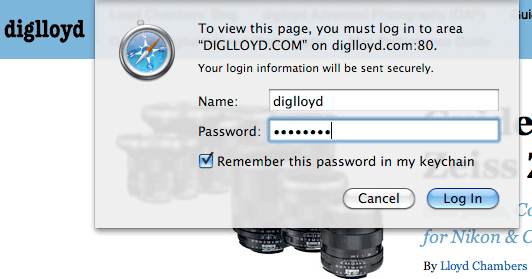
Some web sites use passwords in a way that allows the password to be stored in your Mac’s keychain, a useful convenience. To do so, select (check) the when prompted for the password as shown below.
Clearing the password

While it’s easy enough to check a box, clearing the password is another matter. You might want to clear the password when your login information has changed for the web site, for example.
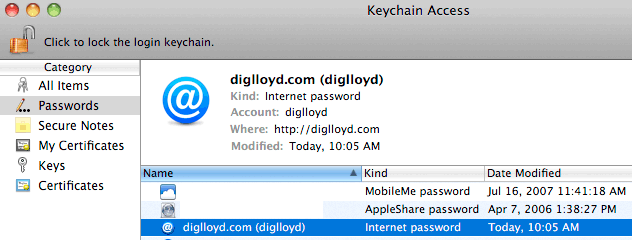
To clear the password, open Keychain Access, located in the Utilities folder on your startup drive (inside the Applications folder).
1. Click on at left.
2. Locate the web site name in the column at right
3. Select the username you wish to remove and press the Delete key.
As shown below, the user diglloyd on web site diglloyd.com is selected. You will have to re-enter the username and password when visiting that web site the next time.
Mozilla Firefox
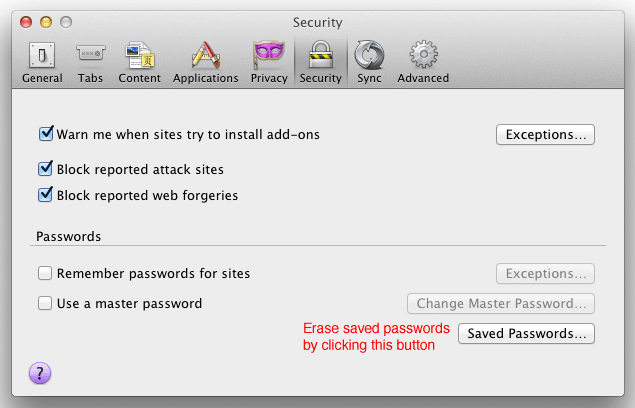
The Firefox Preferences contain the dialog shown below (File => Preferences).
I don’t like having web sites remember my password, but in Firefox, this is controlled by .
Use the button to erase saved password.
Seagate 22TB IronWolf Pro 7200 rpm SATA III 3.5" Internal NAS HDD (CMR)
SAVE $60
