
diglloyd
Mac Performance Guide

Robust SSDs That Start Fast and Stay Fast!
Extreme reliability and performance. Delivered.
Our premium upgrade service provides peace of mind.
MPG Photo Workstation MPG Pro Laptop

100% Kona, 100% Family Owned

WindInMyFace.com — Bicycling blog, gear, rides, training, nutrition

Are you a photographer?

Don’t miss all the great articles, news and analysis at

diglloyd.com
diglloyd.com

Step-by-step to setting up RAID on Mac OS X

Last updated February 19, 2010 - Send Feedback

Please read the Partitioning page and RAID page for background.

This page assumes you have two or more hard drives, and explains how to set up a RAID stripe or mirror on them. A RAID stripe offers far better performance than a single drive can (for most tasks). See the Photoshop test results.

A RAID stripe splits the workload across drives, a RAID mirror makes copies on every drive: see Backup and Reliability.

Setting up a basic RAID volume

This example uses two drives. The steps are the same for any number of drives. Apple’s Disk Utility is used for the examples, SoftRAID is also an excellent choice, with a superior user interface.

Note: When you buy a new drive, it’s unformatted, and the disks seen below (Maxtor 7H500F0) might display slightly differently than as shown. Also, if the drives were previously partitioned, you might need to repartition them into single-partitions, use the Partition tab as seen in the example below.

We’re going to create a striped volume named BigBoy consisting of two Maxtor 7H500F0 hard drives (500GB each). A 2-drive striped volume splits data across multiple drives, so the resulting volume size is twice as large for two drives as for one, and twice as fast.

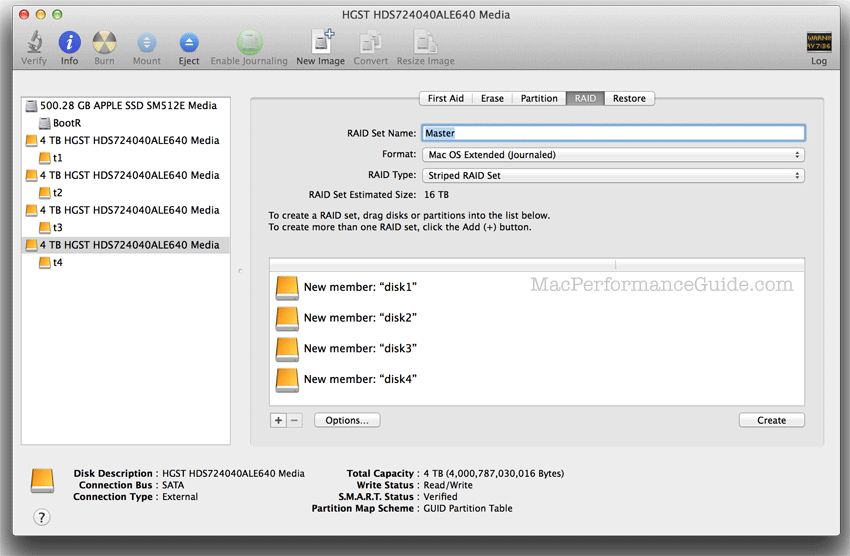
1. Select the RAID tab.
2. Drag each of the hard drives into the area at right (if you have more than two hard drives, drag all the desired drives in)
3. Enter BigBoy for the RAID Set Name.
4. For RAID type, choose Striped RAID Set
5. Click Apply.

raid
RAID setup: striped raid with 2 drives preparation

Clicking Apply raises a dialog that confirms your choice to erase the drives and make them into a RAID. It’s a good idea to read the dialog and make sure you have selected the desired disks. (I have as many as 12 hard drives attached at any one time, so I do not want to make a mistake!).

raid
RAID setup: confirmation to proceed

After the process completes, you will see a new volume BigBoy appear on your desktop, as well as within the Disk Utility window (see below). Apple’s Disk Utility doesn’t make this very clear, SoftRAID is much better in this regard.

raid
RAID setup: striped RAID with 2 drives complete, striped volume BigBoy

Mirror instead of stripe

Instead of a striped RAID (for high performance), you could have chosen Mirrored RAID Set for RAID Type. A mirrored drive is a good choice when drive failure is not an option, but it is not a substitute for a backup.

In the example below, the volume is named OldReliable, and it shows up as seen below, as well as on the Desktop. Note that a mirror is always the size of the partition on each drive; the data is duplicated across each drive of the mirror. You can have as many duplicates as you wish, and you can add them at any time.

Note also that you can start Disk Utility at any time to check on the mirror status. If one of the drives has failed, you will see an Impaired status displayed instead of Online.

raid
RAID setup: mirrored RAID with 2 drives

Setting up a two-partition RAID volume

Goal: create a high-performance scratch disk in addition to a large data drive. This is a great solution for Photoshop, especially with 3 or 4 drives. And even though head contention between partitions is in theory an issue, it’s never been one in practice in my usage; it all depends on actual program behavior.

Here we’ll set up two volumes: a high performance scratch volume, and a main data volume with the remaining space. Let’s call these Speedy and Data.

Step 1 — partition the hard drives

First, partition the two drives into two partitions each. Since the final striped volumes will be named Speedy and Data, name the partitions on the first drive Speedy-1 and Data-1, and the partitions on the second drive Speedy-2 and Data-2; this avoids confusion. After this step, there are 4 new volumes that appear on the desktop. If you have 3 or 4 or N drives, partition each in turn into Speed-3/Speedy-4/... and Data-3/Data-4/... etc.

In this example, I want Speedy to be a 64GB scratch volume (striped), so I’ve made Speedy-1 and Speedy-2 be 32GB each. The volumes Data-1 and Data-2 contain the remaining space. Note that four volumes have appeared on the desktop at right.

DiskUtility After partitioning the two hard drives into 2 partitions each
After partitioning the two hard drives into 2 partitions each

Step 2 — create the RAID sets

Next, create the two striped RAID volumes, which will each consist of two partitions that you made in step 1.

1. Click on the RAID tab, then drag Speedy-1 and Speedy-2 into the area at right, and make the RAID Set Name be Speedy. (The names in the area confusingly change to “disk1s2” and “disk2s2”, that’s life with Disk Utility).

2. Choose Striped RAID Set, then click Create.

Repeat this step for Data-1 and Data-2, naming the volume Data.

Disk Utility Make a RAID set
Make a RAID set

If you’ve done it all right, you’ll see something like this. The volume icons as seen on the desktop will likely have different icons. If you made a mistake, you can delete the RAID partition and try again.

Disk Utility Make a RAID set
After making RAID sets of both Speedy and Data

Conclusions

For more examples, see The DIGLLOYD Mac Pro.

Setting up RAID is not hard, and has many benefits. Users looking for high performance can achieve it cost-effectively, and users who want reliability can have it too. Two drives instead of one drive is all it takes, and drives in 2008 are very inexpensive.

Setting up RAID is even faster and easier with SoftRAID.

Help us help you! You support the reviews and how-to articles on this site when you buy from trusted site sponsor Other World Computing (use the links/ads anywhere in this Guide).

OWC does not sell Macs, so when buying a Mac, please click here to go to the Apple store, but remember to save money by getting your memory and hard drives, backup systems, etc at OWC.

Please let others know about this site by posting a hyperlink to site page(s) in discussion forums, web sites, etc — thank you!


Outstanding 6G SSD Performance!

diglloyd Home Page | Terms of Use | Copyright © 2008-2011 diglloyd Inc, all rights reserved. | Contact | Newsletter + Alerts | Press