
Don’t buy new a new Mac— upgrade it!
Upgrading your existing Mac is especially cost-effective in early 2009. With a Mac that’s less than 2 years old, upgrading makes tremendous sense. Even if your Mac is more than two years old, performance often can be increased substantially by upgrading the memory, hard drive(s) and graphics.
- Memory prices are at historic lows in early 2009.
- Expect memory prices to rise substantially in 2009 as memory manufacturers cut back and/or cease production (even the most efficient producers are losing money). Now is the time to stuff that Mac Pro with 32GB!
- Hard drive prices are under severe pressure
-
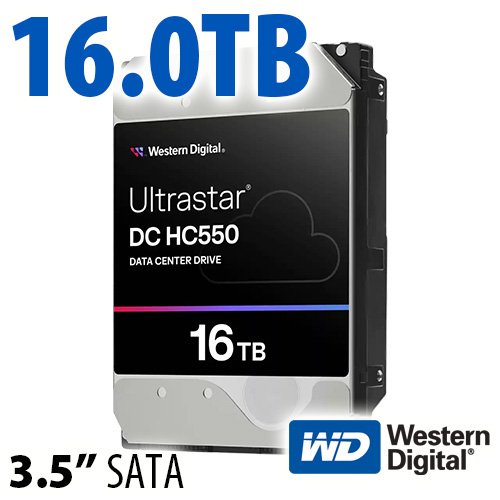
One-terabyte 3.5" hard drives now hover just over $100. Fast 2.5" (laptop, MacMini) hard drives up to 500GB are in the $80 - $110 range. Get the largest hard drive(s) for speed reasons, even if you don’t need the space Why.
- Save big by going with a reputable 3rd-party vendor
- Apple builds the Mac you love, but when it’s time to upgrade, save big with reputable 3rd-party vendors. Look for responsive customer service, and a strong return/exchange guarantee. We recommend Other World Computing (OWC) based on personal experience.
Tip #1: Install adequate memory
Every Mac should have a minimum of 4GB to rule out performance glitches, 8GB for the Mac Pro. In early 2009, those amounts are very inexpensive. Stick with reliable vendors—cut rate memory can cause endless headaches, and/or degrade real-world performance. In fact, the “same” memory (specs) can perform differently, depending on the quality of the chips. OWC is one vendor that offers top-performing memory at very competitive prices and a lifetime guarantee.
On Mac OS X 10.4/5, “extra” memory is not wasted: your Mac uses it to cache access to the hard drive(s). This creates a major speed boost when re-launching programs, re-opening files, etc. Photoshop users working with huge files will see huge benefits by maxing-out system memory Details.
MacBook Pro users can now install 6GB of memory. Extensive stress and performance testingwith the late 2008 unibody MacBook Pro and earlier models shows rock-solid reliability with the OWC 6GB kit—see the review as well as what it can do for Photoshop performance.
Tip #2: Maximize hard drive performance
On systems other than the Mac Pro and XServe, the boot drive is used for everything. With adequate memory, boot time and application launch time are unimportant Why, but when your data is on the boot drive all activity that involves opening and saving files is affected by drive speed. And as the drive fills up, speed degrades steadily to about one-half of the fastest side of the drive Why.
- Use 7200 rpm drive(s) with a 16MB or 32MB cache
- For any given capacity, get a 7200 rpm drive, not 5400 or 4200 rpm—the rpm directly relates to drive speed. Exception for laptop users: the 500GB 5400 rpm Western Digital Scorpio Blue compares favorably with 320GB 7200 rpm drives due to its higher data density. When 500GB 7200 rpm drives emerge (soon), prefer 7200 rpm in the 500GB capacity.
- Use half the drive capacity
- By using less than half of the drive capacity, the fast part of the drive will be used. Since the fast (outer) tracks are almost twice as fast as the slower (inner) tracks, this makes a huge difference Why.
- Partition your drive
- Even for the boot drive, consider a disk partition (use twice the size you think you need). This can force activity to use the fast side of the drive. Any extra space can be used as backup or ignored.
- Separate system/applications from your data
-
With the Mac Pro, separate system/applications from your data; make sure the data drive is a top performer. This approach can also work with a MacBook Pro, or any Mac with Firewire 800 (USB and Firewire 400 are too slow). See Recommended Hardware.
- Consider RAID for performance and/or reliability
- A Mac Pro accommodates four internal hard drives, but RAID is also feasible on a MacBook Pro with eSATA and/or Firewire 800. See the RAID page at MacPerformanceGuide.com for details.
- Remove unused files
- By freeing up space, files end up being stored on the faster side of the hard drive. With limited-capacity solid state drives (SSD), reinstalling a minimal system can save 6GB alone, especially important. See the review of the 80GB Intel X25-M at MacPerformanceGuide.com.
Tip #3: Faster graphics, larger display(s)
Many Macs can use an external monitor: enhance your productivity and ergonomics.
- Larger monitor or dual monitors
- The productivity and ergonomic benefits of a large monitor are wonderful—once you experience a 24" or 30" monitor, you’ll never want to go back to a smaller one. For laptop users, add a keyboard and mouse for a full “desktop” experience with far better ergonomics. Dual monitors (Mac Pro) are great for palettes and other extras. Laptop users can use the laptop screen as the 2nd monitor.
- Faster video card
- For the Mac Pro, upgrade the video card to a current model with 512MB of video memory and support for dual 30" displays: cards that have those features are very fast at “core graphics”, which can speed up all sorts of system graphics operations and greatly accelerate programs like Apple’s Aperture and Photoshop CS4, and others.
Help us help you! You support the reviews and how-to articles on this site when you buy from trusted site sponsor Other World Computing (use the links/ads anywhere in this Guide).
OWC does not sell Macs, so when buying a Mac, please click here to go to the Apple store, but remember to save money by getting your memory and hard drives, backup systems, etc at OWC.
Please let others know about this site by posting a hyperlink to site page(s) in discussion forums, web sites, etc — thank you!