

 SEARCH
 diglloydTools™
$220 SAVE $130 = 37.0% Western Digital 16.0TB Western Digital Ultrastar DC HC550 3.5-in… in Storage: Hard Drives
|
|

|
|

|

|

|

|

|

|
Adobe Lightroom Catalog Backup

Adobe Lightroom has an automatic backup feature to backup the Lightroom catalog. It has too many limitations and risks to consider using it; in my view Adobe should remove the feature entirely.
Backup should be complete, not piecemeal, and it should be automatic for constant protection (though for off-site backups, manual is just fine, and desirable).
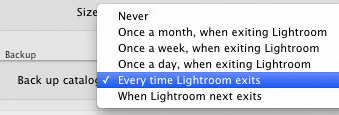
Several concerns arise with the half-hearted way Lightroom backs up the catalog—
- The catalog is usually less important than the original images, but the catalog backup does not backup the original images.
- Lightroom is perfectly happy to backup the catalog to the same drive as the original— a pointless exercise unless perhaps as a protection against bugs in Lightroom itself. If the drive fails, both the original and the “backups” are toast. There is no warning against this dangerous behavior. I consider this a data threatening bug in Lightroom.
- The backup “when” choices are nuts: once a week or month are ridiculous, once a day is not enough, and anything else requires quitting. There is no “backup once an hour”, which is what is really needed. There is no technical reason that Lightroom could not backup at a specified interval.
Backing-up the Lightroom catalog and your images and other stuff with Time Machine
Time Machine is a valuable way to backup your Lightroom catalog, see Using Time Machine with Adobe Lightroom.
The elegance of Time Machine is that it backs up everything: your Lightroom catalog, your settings, your images, all your stuff. The piecemeal approach of backing up the catalog is worthless in the big scheme of things— who care if you have the catalog when all the original images are lost?
The right way to backup Lightroom with Time Machine:
- Quit Lightroom.
- Choose Backup Now from the Time Machine menu.
Seagate 22TB IronWolf Pro 7200 rpm SATA III 3.5" Internal NAS HDD (CMR)
SAVE $100
